


D365 Batch Job Monitoring on Azure Application Insights: What the New [ICS] Monitoring Tool Release Changes
A few months ago we compared Azure Application Insights and [ICS] Monitoring Tool side by side. With the new release, that comparison is history: D365 batch job monitoring with the [ICS] Monitoring Tool now runs on Azure Application Insights. Here is what changed and why it matters.
 15 Oct 2026


![A new version of [ICS] Vehicle Loading Solution for D365 SCM is live. Truck loading history, Electronic Reporting formats for loading and unloading lists, and extended Route placement.](https://ic-service.net/wp-content/uploads/2026/10/blog-post-2110-300x127.png)


From “either/or” to “better together”
In our earlier two-part comparison, Application Insights gave a solid view of batch jobs but stopped at the basics, while the Monitoring Tool added business logic, alerts and analytics on top.
That is exactly what the new release combines. Monitoring data now flows into Azure Application Insights, the Microsoft-native telemetry service your D365 environment already uses, and analytics are delivered through Azure Workbooks. The Monitoring Tool adds what standard Dynamics 365 monitoring lacks: it decides what to watch, what counts as a problem, and who needs to know.
The gap in standard D365 batch job monitoring
By default, D365 sends batch job logs to Azure for analysis. This works, but it is reactive:
- Problems surface late. A batch can finish without errors while one of 200 orders was silently skipped because a record was locked. You only see it in the logs, usually after something has already gone wrong.
- Analytics need KQL. To investigate in Application Insights you write queries, find the batch ID and know exactly what you are looking for. Microsoft’s native Observability Agent can help build the right KQL query from the context of your requests, but it is a paid feature, you still need to know exactly what you want to find, and complex logic takes time to turn into a correct query.
- Forecasting is hard. It is difficult to spot patterns and predict failures from raw logs.
How the new release works
Instead of making you dig through telemetry, the Monitoring Tool delivers proactive monitoring:
- A dedicated workspace in D365 lets you select only the batches that truly affect your business and set the criteria for them manually.
- Data goes straight to Application Insights, with no extra layer between your ERP and Azure.
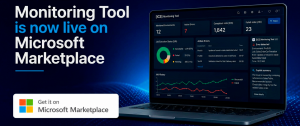
- Azure Workbooks show analytics for the selected batches in ready-made dashboards, replacing the Power BI dashboards used in earlier versions.
- Alerts reach people where they work: by email or in Microsoft Teams.
What our solution monitors
The tool tracks the situations that standard Dynamics 365 monitoring misses:
- batches in Withhold, Deleted and Ended status;
- Infolog errors, including skipped records in batches that finished “successfully”;
- long-running batches;
- batches that start too early or too late;
- unmonitored long-running batches: the tool watches all batches, not only those in your dashboard focus. This is the scenario from Case 4 of our earlier article, where an uncontrolled job consumed resources for two days.
Standard monitoring vs. the new Monitoring Tool
| Standard D365 monitoring | [ICS] Monitoring Tool on Application Insights | |
|---|---|---|
| Detection | Problems surface in logs after the fact | Chosen batches are checked against your criteria; deviations are flagged proactively |
| Skipped records | Visible only in logs, even if the batch ended without errors | Infolog errors are tracked and trigger alerts |
| Analytics | KQL queries written by hand, or built with a paid Observability Agent | Ready-made Azure Workbooks dashboards |
| Alerts | Standard events only | Email and Microsoft Teams, configured to your rules |
| Unplanned long runs | Noticed only if the batch is in the monitoring pool | Long-running batches detected across all batches, not just monitored ones |
Five benefits of the new architecture
- One Microsoft-native stack. Monitoring and analytics both live in Azure, next to your D365 telemetry. Power BI has been fully replaced by Azure Workbooks, so there is no separate reporting layer to configure or maintain, and no Power BI training for users.
- Insight without writing queries. Workbooks turn monitoring data into dashboards that business users and managers can read without KQL.
- Proactive, not reactive. Proactive monitoring means you are alerted when something drifts from normal, not after users complain.
- Faster root-cause work. Infolog errors, run times and statuses sit side by side, so the cause of a problem is easier to find. That includes the hidden cases we described in Part 2: skipped transfer orders, slow synchronization, jobs stuck on SQL locks.
- Room to grow. Because the foundation is Azure, new capabilities arrive on the same platform. The first one is below.
New: form performance monitoring
The same approach now covers the user interface. Form performance monitoring tracks how long key forms take to open, measures the average, and sends an alert when a form opens noticeably slower than usual.
With form performance monitoring in place, if a form normally opens in about 5 seconds and the average climbs to 6, your team is notified before users start complaining about a slow system.
What this means for you
- Relying on standard Application Insights? The Monitoring Tool is now a layer on top of what you already have, not a replacement for it.
- Not monitoring batches yet? It is a quick way to move from “we find out when users call” to “we find out first”.
Whether you want D365 batch job monitoring run by your own team or by ICS specialists, the Monitoring Tool is available as a product or as a managed service with 24/7 support, and on Microsoft Marketplace.
Want to see it on your own batches? Contact us for a live demo.